Showing posts with label Zoom. Show all posts

Wednesday, May 6, 2020

Hints for joining a Zoom meeting from Burlington English

If you want to join the Zoom meeting from BurlingtonEnglish.com, be sure you log in with your PERSONAL ID (a number that starts with 900) and password, NOT the Zoom meeting ID and password. The Zoom meeting ID and password will be shown in the box that pops up, but I have hidden this information in the picture below.

After you log in, click "Away from school." From the menu boxes, click on the box that says "Virtual Scheduler." Then click on the meeting date, and a box will pop up that looks like this:


The timer doesn't start until 15 minutes before the meeting begins. At 5 minutes before the meeting begins, the box will look like this:


Simply click the green Join Now button to join the meeting.

You can also join by going to zoom.com and entering the meeting ID and Password listed in the box.

Tuesday, April 28, 2020

Tuesday, April 28, 2020

Announcements

1. I have been late getting some of the assignments and homework answers published on the blog, and for this I apologize. I have caught up with posting last week's homework answers, and the homework I assigned at our Monday Zoom meeting is now listed below.

2. Thank you for those of you who have sent me your answers to the Unit 12 test. We will go over the answers at tomorrow morning's Zoom meeting (Wednesday, 4/28/20 at 10 a.m.). 

3. Remember that you can now join our online Zoom meetings through the Burlington English website. Simply log in with your user ID and password, click "away from school," and click on "virtual class schedule." Then click on the date of the meeting. You will be able to join the meeting 5 minutes prior to the start of the meeting.


Assignments

1. Future English 3 Textbook, p. 158--Do exercises 3B (fact vs. opinion) and 4 (matching).
2. Future English 3 Workbook, p. 90--Fill in the blanks with the correct answers.

You do not need to send me this assignment. We will go over the answers on Wednesday in our online meeting at 10 a.m.


Wednesday, April 22, 2020

You can now join our Zoom class meetings on the Burlington English website!

Wednesday, April 22, 2020

Announcements

1) You can now join our online Zoom meetings (each Monday, Wednesday, and Friday at 10:00 a.m., through May 15th) at the Burlington English website. Just go to the BE website (the link is below), log in, and follow the instructions in the picture beneath the link:

LINK: Burlington English website


Wednesday, April 15, 2020

Wednesday, April 15, 2020 Announcements and Assignments

Wednesday, April 15, 2020

Announcements

1) Zoom meeting today at 10:00 a.m. We will discuss how to log in at Burlington English and watch a video about using the Burlington English website.

2) We will also decide on regular Zoom meeting days--how often, which days, etc. 

3) Homework assignments will continue to be given on this blog, so please check daily.

Assignments

1) Grammar review for Unit 12 of the textbook

Please do all exercises on p. 256 (A, B, and C) of the Future English 3 Textbook. Send the answers to me in an email or text by Friday, April 17th. You can send me  a picture of your answers or write them down in the email or text.


2) Go to the Burlington English website at this link:

LINK: Burlington English

Log in to the website using the ID and password I sent you yesterday. 

Then click on "Away from School", then on "Courses."

Click on General English--Burlington Core--Low Intermediate:


Click on "Student Lessons," then click on Lesson 1 and begin work on the lesson.

Continue at your own pace.


Tuesday, April 14, 2020

Tuesday, April 14, 2020 Announcements

Tuesday, April 14, 2020

UPDATE--THE ZOOM MEETING THAT WAS SCHEDULED FOR TODAY HAS BEEN CANCELED BECAUSE OF TECHNICAL PROBLEMS. WE WILL HAVE THE ZOOM MEETING ONLINE ON WEDNESDAY, 4/15/20, AT 10:00.  I WILL SEND OUT THE NEW MEETING LINK LATER TODAY. I APOLOGIZE FOR THE CONFUSION!

Announcements

1) We will have a Zoom meeting online at 10:00 a.m. today (Tuesday, April 14, 2020). Please use the same link, (or meeting ID and password) that we used for previous meetings. This information was sent out last week both by email and text message. I also sent out an email this morning with the same information.

2) Last week I posted links to videos on how to use Zoom meeting on your computer or phone. I have added a link to a video on using Zoom on an iPad. Remember to download the app "Zoom for Cloud Meetings" if you are using a phone or iPad. Here are the links to video instructions again:

Below I have posted some links to YouTube videos that give instructions for using a cell phone to join a Zoom meeting.

Click the links below to watch videos on how to install the Zoom app and join a meeting on a Samsung phone, which uses the Android operating system (1st and 2nd links) or on an iPhone (3rd link) or iPad (4th link).

At the end of the post, there are also instructions for how to chat on Zoom if you have an Android phone like the Samsung. 

LINK: How to install Zoom on Samsung phones

LINK: How to join a meeting on Zoom with an Android phone

LINK: How to join a Zoom meeting on an iPhone

LINK: How to use Zoom meeting on iPad

How to chat in Zoom (mobile app)

  1. Download the Zoom app for iOS or Android.
  2. Open the app and start or join a meeting.
  3. Tap the screen to make the controls bar appear. 
  4. Tap on Participants. 
  5. At the bottom of the list, tap Chat.
  6. Type your message and tap Send. If you want to send to a specific person, tap the arrow next to "Send to:" and choose from the list.
  7. When new chat messages are sent, they will be displayed at the bottom of the screen. Tap Participants, then Chat to view them.


The above instructions were found at this link: https://www.tomsguide.com/news/how-to-chat-in-zoom

3) This morning I sent a text message to each of you with your login information for Burlington English. If you did not receive this message, please text or email me and I will send it again.
309-948-9615
calderk@bhc.edu

4) It is no longer necessary to download an app for using BE. You can go directly to the website and type in your login information.

Type burlingtonenglish.com into the address bar of your web browser, or click on the link below to go to the website:

LINK: Burlington English

Once you are at the website, click on this symbol to type in your user ID and password:


5) Please click on the video below to watch instructions on using Burlington English:


Wednesday, April 8, 2020

We'll repeat the online Zoom meeting tomorrow, April 9th, at 10:00 a.m.

Updated 4/13/20 to add link for how to use Zoom meetings on iPad (see below)

Remember that Friday, April 10th, is a holiday, so there will be no assignments or blog posts.

If you received any emails Wednesday evening that said you're registered at Zoom or that a Zoom meeting was canceled, just ignore them and delete them. Like I said, I'm still learning. 

We are meeting online again on Zoom tomorrow (Thursday, April 9th). 

Use the same link, meeting ID, and password that we used yesterday. I cannot post them here on the blog for security reasons, so open the same invitation to Zoom email or text that I sent yesterday. The link, meeting ID, and password are there.

Congratulations to those of you who were able to participate in the online Zoom meeting this morning! 

We had some trouble, but we managed to see and hear each other. I'm still learning how to do things like share my computer screen with everyone during a meeting. Hopefully I'll get better at it.

Below I have posted some links to YouTube videos that give instructions for using a cell phone to join a Zoom meeting.

Click the links below to watch videos on how to install the Zoom app and join a meeting on a Samsung phone, which uses the Android operating system (1st and 2nd links) or on an iPhone (3rd link) or iPad (4th link).

At the end of the post, there are also instructions for how to chat on Zoom if you have an Android phone like the Samsung. 

LINK: How to install Zoom on Samsung phones

LINK: How to join a meeting on Zoom with an Android phone

LINK: How to join a Zoom meeting on an iPhone

LINK: How to use Zoom meeting on iPad

How to chat in Zoom (mobile app)

  1. Download the Zoom app for iOS or Android.
  2. Open the app and start or join a meeting.
  3. Tap the screen to make the controls bar appear. 
  4. Tap on Participants. 
  5. At the bottom of the list, tap Chat.
  6. Type your message and tap Send. If you want to send to a specific person, tap the arrow next to "Send to:" and choose from the list.
  7. When new chat messages are sent, they will be displayed at the bottom of the screen. Tap Participants, then Chat to view them.


The above instructions were found at this link: https://www.tomsguide.com/news/how-to-chat-in-zoom

Tuesday, April 7, 2020

Online meetings start Wednesday, April 8, at 10:00 a.m.

Tuesday, April 7, 2020

Remember, there will be no class, homework, or blog post on Friday, April 10 (Good Friday).

Today I sent out an invitation (both by text and by email)  to join our online meeting tomorrow (Wednesday, 4/8/20) at 10:00 a.m. I look forward to seeing and talking to you tomorrow. I included instructions in the invitation message, but below are some direction with pictures that might be helpful. 

I probably forgot something in these instructions. If you don't understand them or have any kind of trouble when you try to join the meeting at 10:00 a.m. tomorrow, simply call me on my cell phone (309) 948-9615 and I will help you.

1) A few minutes before 10:00 a.m. tomorrow, open the text or email with the invitation and click on the link I provided. The link will take you to the Zoom website.*

*If you have trouble getting the link to work, simply open the web browser on your computer or smart phone (Chrome, Explorer, Safari, etc.) and type Zoom.com in the address window. At the Zoom website you will then click Join a Meeting at the top of the screen. You will be asked to type in the meeting I.D. and then the password (you will find these in your invitation message). The screen on your device will look like this:


2) If the link works, it will automatically take you to the meeting site at Zoom.com. Click where it says Open Zoom in the smaller box at the top of your computer or phone screen.

4) If you have never used Zoom before, you will probably have to download Zoom to your computer or phone. If you need to download Zoom, click on the screen where you see the words download & run Zoom. After that you can click Open Zoom again.

5) When the meeting screen opens, you may need to click a box that says Connect with Video. You will then be able to see the people in the meeting. 

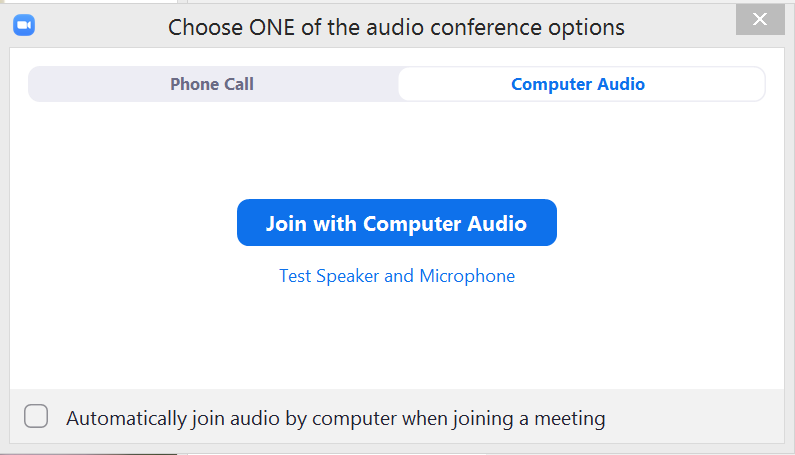
6) You may see a box that looks like this:


On your screen, click the box that says Join with Computer Audio     

If you have trouble with the audio, there is also a way to use the audio on your smart phone. On your computer or phone, click Phone Call (upper left of the box). Then you will call a number with your smart phone. You will be asked to type in the meeting I.D. and then the password (these are provided in your invitation). The phone number to dial is (312) 626-6799.

I probably forgot something in these instructions. If you don't understand them or have any kind of trouble, simply call me on my cell phone: (309) 948-9615 and I will help you.